
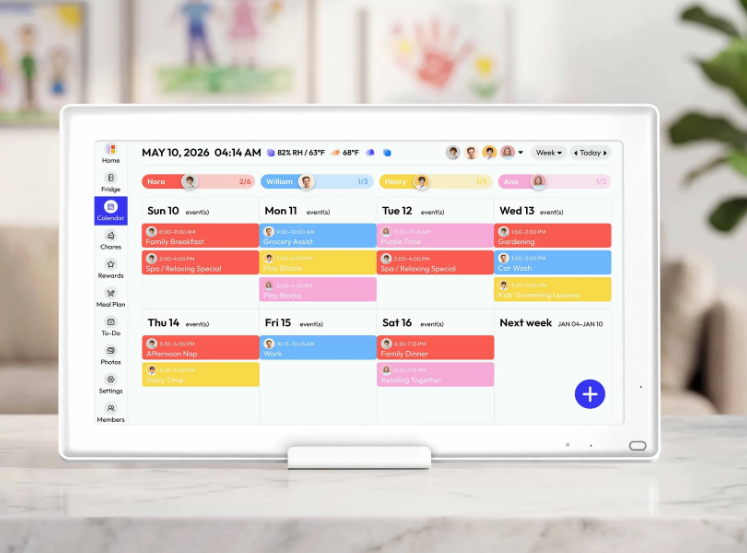
Between practice, Scouts, dance class, and whatever we’ve got going on over the weekend, I like to know what the week looks like before I’m halfway through it. That’s why we put the Everblog HomeCal in our kitchen. It syncs with the calendars we already use, so I can see what’s coming up while I’m making coffee or getting dinner started.
I figured we’d use it for the calendar and the kids’ chores. I didn’t expect my wife to use it for Italian lessons while she cooks, or the kids to hang out with me in the kitchen watching Pokémon videos while I make dinner. Those are some of my favorite ways it’s fit into our day. The meal planner, on the other hand, is still waiting for me to get my act together.
Let´s dive in.
Everblog HomeCal™ Verdict
Taste: ⭐⭐⭐⭐☆
Ingredient Quality: ⭐⭐⭐⭐⭐
Effectiveness: ⭐⭐⭐⭐☆
Value: ⭐⭐⭐⭐☆
Overall: 4.5/5 ⭐⭐⭐⭐☆
The TLDR
The Everblog HomeCal is a 21.5-inch touchscreen that syncs with your existing calendars and displays your family’s schedule, chores, and meal plans. It also shows the weather, doubles as a digital photo frame, and lets you schedule the screen to turn off at night and come back on in the morning. There’s no monthly subscription.
I love ours. I can see practice, Scouts, dance class, and our weekend plans while I’m making coffee. The kids can check off their own chores, and I like seeing old family photos pop up in the kitchen. I barely use the meal planner (though I should—mental note), and the price is my biggest hangup. A few hundred dollars is a lot for a calendar. For us, it’s been worth it. We look at it every day, and sometimes the kids stick around to watch Pokémon while I make dinner.
What Is the Everblog HomeCal™?
The Everblog HomeCal™ is a 21.5-inch smart digital calendar and home management display designed to act as a shared family hub. It syncs schedules, organizes tasks, tracks meals, and helps manage daily routines all from one screen.
It integrates with platforms like Google Calendar, iCal, and Outlook, and allows every family member to view and update schedules in real time. Beyond scheduling, it includes features like chore tracking, meal planning, grocery lists, and even a fridge manager to help reduce food waste.
It’s designed to simplify coordination, reduce mental load, and create a more structured, predictable home environment.
What The Manufacturer Says
Shared family calendar
Chore charts and task tracking
Meal planning and fridge management
Real-time syncing across devices
Voice, photo, and manual input options
No subscription required
Free updates included
Benefits
Improved organization and clarity
Reduced mental load from tracking tasks and schedules
Better family communication and accountability
Encourages kids to build responsibility through chore tracking
Simplifies meal planning and grocery management
Helps reduce food waste with fridge tracking
Centralizes multiple tools into one system
Selling Points
The Week at a Glance: It syncs with the calendars we already use, so I can see practices, Scouts, dance class, birthdays, and weekend plans on one screen.
Chores the Kids Can Check Off: The kids can see what they’re supposed to do and mark it done themselves. We’ve used it for laundry, cleaning their rooms, and even “Help someone today,” which we’ve admittedly been inconsistent with.
Weather and Family Photos: I check the weather while I’m in the kitchen, and the rotating screensaver brings up family photos I’d otherwise forget were on my phone.
Apps We Actually Use: My wife pulls up Italian lessons while she cooks, and the kids sometimes watch Pokémon videos while I make dinner. I like having them in the kitchen with me.
Scheduled Sleep Mode: You can set the screen to turn off before bed and come back on in the morning. It’s one less source of blue light in the evening, and the display uses less electricity while it’s off.
No Subscription: You pay for the device once and get ongoing software updates.
A Smaller Fridge Option: If you’re short on wall space, the 13.4-inch FridgeCal attaches magnetically to the fridge.
Drawbacks
Upfront Cost: A few hundred dollars is a lot if everyone in your house already checks the same shared calendar.
A Large Screen: The 21.5-inch HomeCal takes up a decent amount of space. We found a great spot for it but it may be too large for some (there´s the fridge magnetic option as a choice if this is the case as well).
WiFi for Syncing: The display needs a WiFi connection to stay synced with your calendars and the app.
Tips
Set the screen to go dark before bed. Use Sleep Mode to give the display a bedtime and a wake time. It’s one less screen lighting up the kitchen after everyone’s gone upstairs.
Try a chore that isn’t about cleaning. We added, “Help someone today.” We’ve admittedly been inconsistent with it, but I like the idea of asking the kids at dinner who they helped and what they did.
Put it where you’ll see it. Ours is in the kitchen, where I can check the week while I’m making coffee. Pick a spot your family already walks past a lot.
My Experience With the Everblog HomeCal
My favorite features are the weather, the shared calendar, the rotating photo screensaver, and the apps we added. The HomeCal syncs with our calendars, so I can walk into the kitchen and see the whole week at a glance. Practice, Scouts, dance class, weekend plans, birthdays. Having all of that in one place takes a little of the mental load of parenting off my plate. I usually check the weather while I’m there, and I love seeing old family photos pop up that I’d otherwise forget were on my phone.
We’ve used the chore feature quite a bit for laundry and cleaning their rooms. I like giving the kids more chances to do things on their own, and having a list they can check themselves helps. We even added “Help someone today,” which we’ve admittedly been inconsistent with. I’ve been even less consistent with the meal planner, though that’s one feature I’d like to use more.
We added YouTube and a few other apps, and that’s given us more reasons to use the screen in the kitchen. My wife uses it to learn Italian while she cooks. When I’m making dinner, the kids will sometimes pull up a Pokémon video on YouTube instead of going off to play in the other room. I get to make dinner and hear what they have to say about whichever Pokémon they’re into that week. I like having them in there with me.
Everblog FAQs
Do you need a subscription?
No. You pay for the device once. Everblog doesn’t require a monthly fee for the calendar, chores, meal planning, or photos.
Can multiple family members use it?
Yes. Family members can access the shared calendar, and you can use separate profiles to see whose events and chores are on the screen.
Does it sync with Google Calendar, iCal, or Outlook?
Yes. Everblog supports all three, so you can bring in schedules you already keep elsewhere.
How do you set it up?
Connect the display to WiFi, download the Everblog app, and pair your phone with the code on the screen. From there, you can connect your calendars and add family members.
Can kids check off their own chores?
Yes. You can assign chores to individual kids, set them to repeat, and have the kids mark them complete on the display. There’s an option to add stars as rewards.
Can you plan meals on it?
Yes. You can put meals on the schedule so everyone can see what’s for dinner. You can also add the same meal to multiple days if you’re planning on leftovers.
Can you add events when you’re away from home?
Yes. Use the Everblog app on your phone to add an event when you’re out.
Can you use it as a digital photo frame?
Yes. You can upload family photos and have them cycle through as a screensaver. This is one of my favorite features.
Does it need WiFi?
You’ll need WiFi for setup and to keep the display synced with the app and your connected calendars.
Who is it most useful for?
I’d get the most out of it in a busy household where several people need to see the same plans. It helps if you have a spot everyone already passes through, which is why the kitchen works so well for us.
Related:
